Chat
The chat surface in ClickHouse Agents handles conversations, branching, side-by-side comparison, and sharing.
Conversations
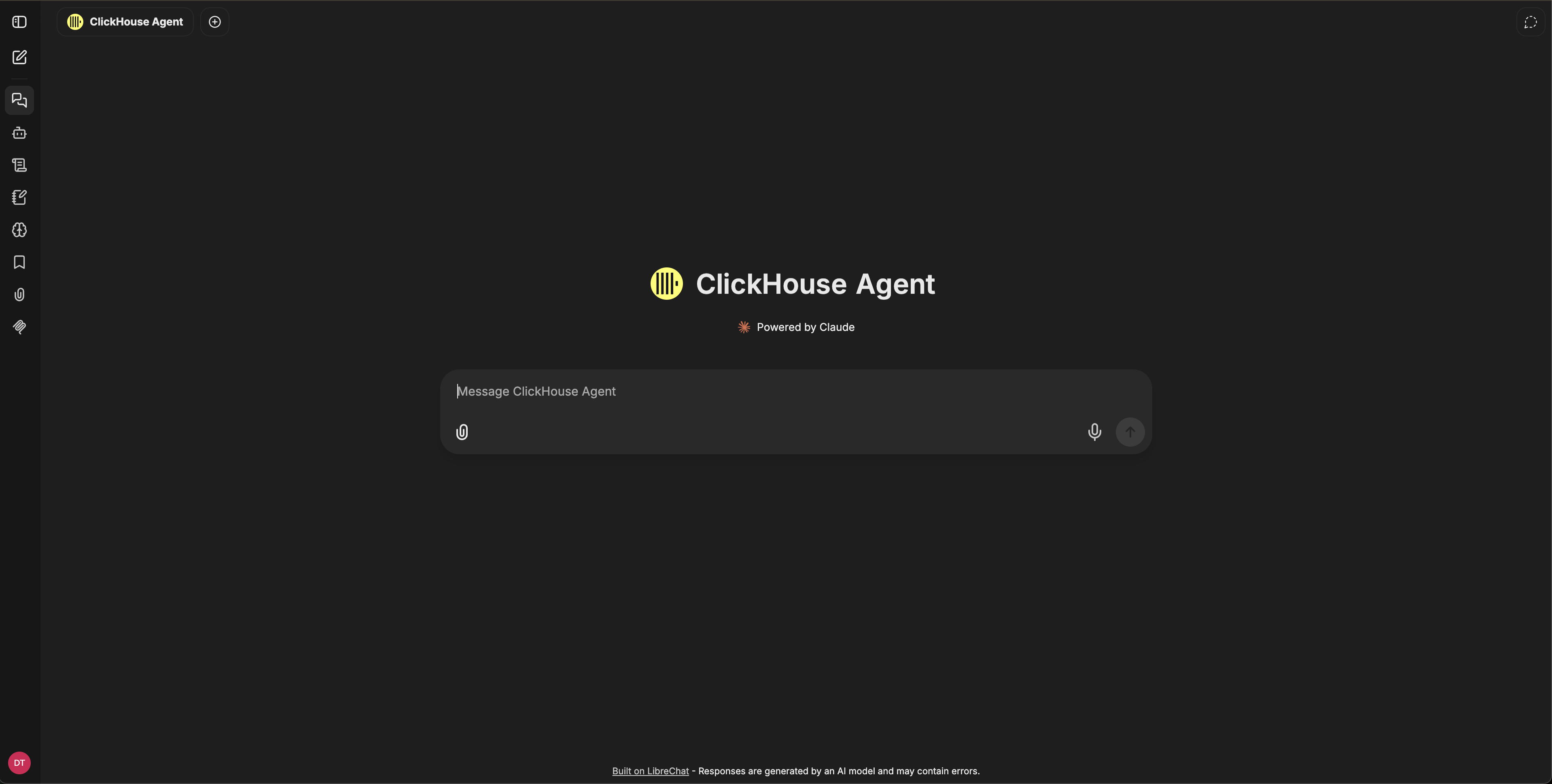
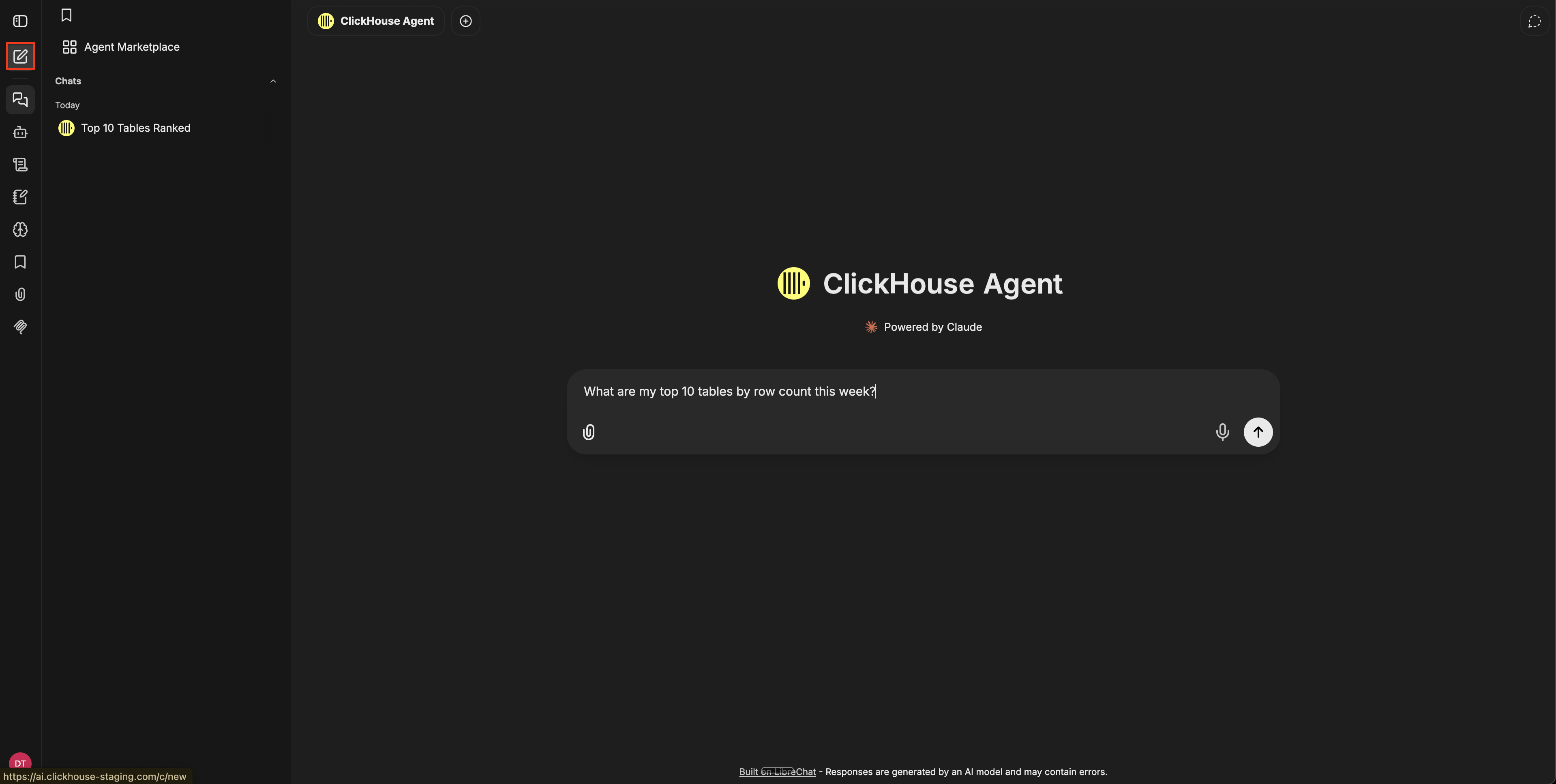
Start a new conversation by clicking the compose icon in the left navigation. Select the agent you wish to use from the Agent selector dialogue at the top left of the conversation window - by default the ClickHouse Agent is selected. You can now type your message in the composer, and press send. Each conversation is saved to your sidebar history and can be reopened, renamed, or deleted later.
You can edit any of your messages in place, and the agent will regenerate its response from that point in the conversation history. You can also regenerate the agent's last response only, without re-sending your message.
Bookmarks
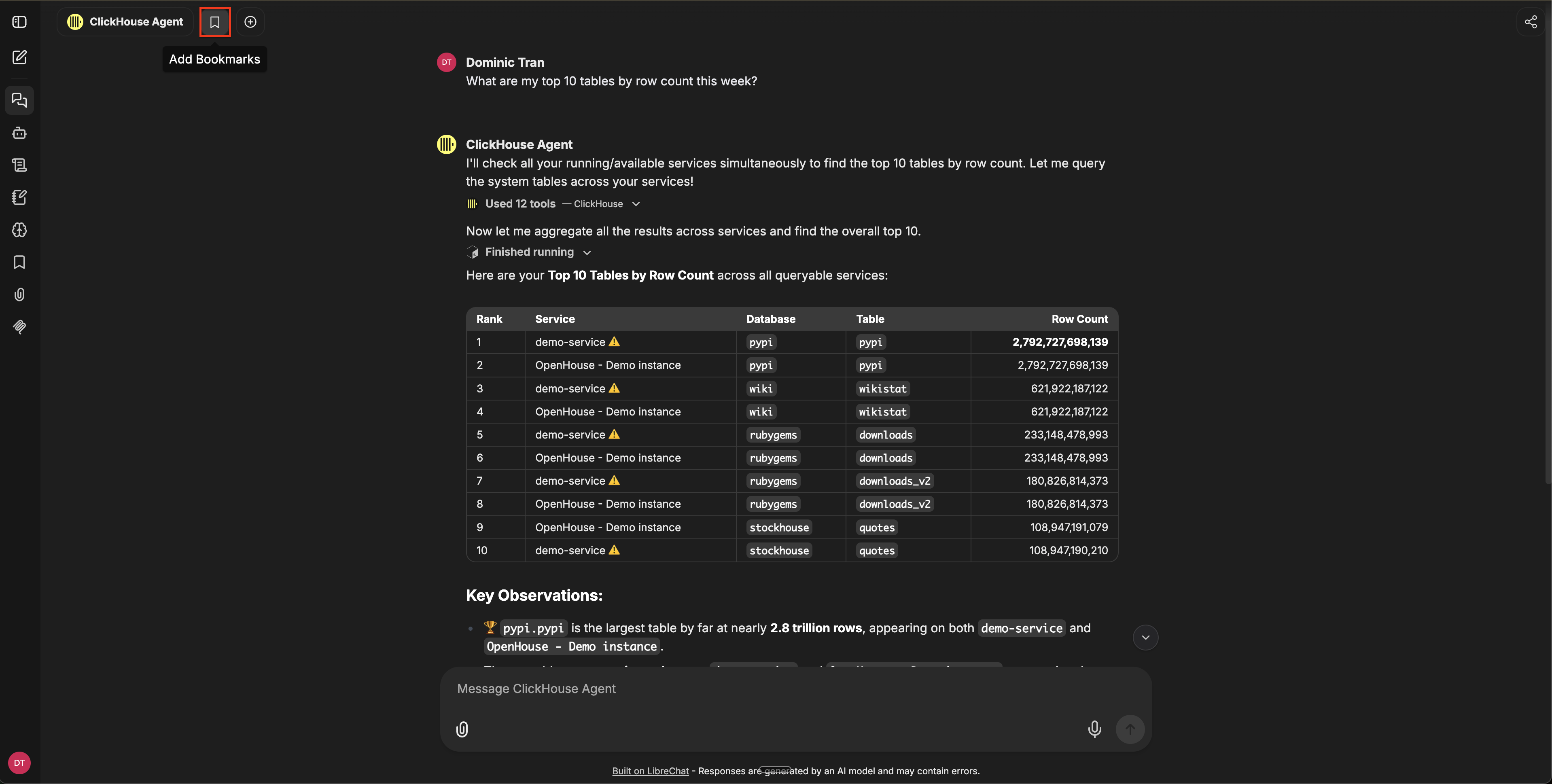
Bookmark a message or a whole conversation to flag it for quick retrieval. Bookmarks are private to you and survive conversation renames.
Forking
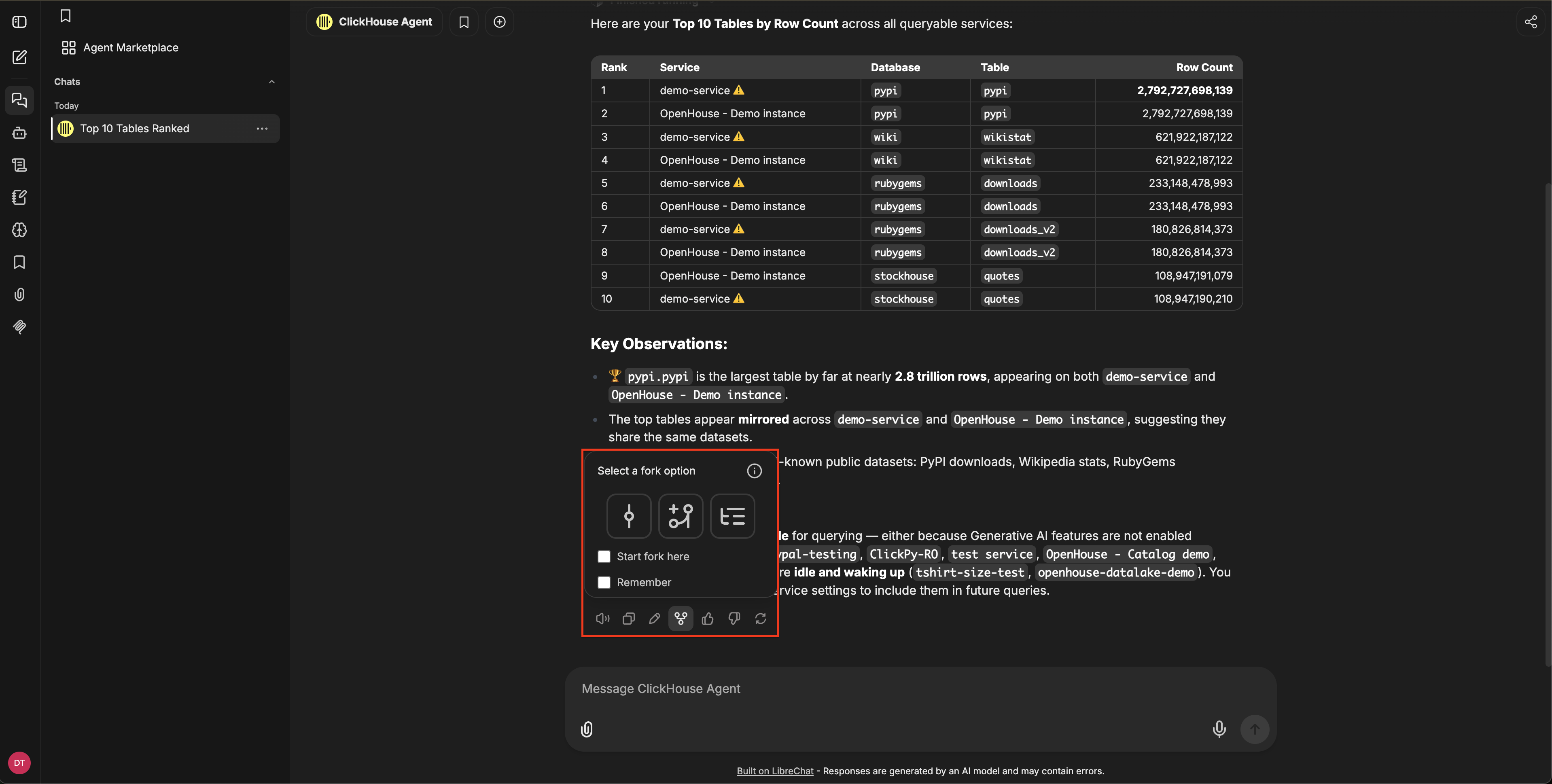
Forking creates a new conversation branched from a specific message. You can use it to explore an alternative path without disrupting the original thread. There are three fork modes available:
- Visible messages only - lets you copy the direct path to the forked message.
- Include related branches - lets you copy the main path plus any existing branches.
- Include all to here - lets you copy everything up to the forked message.
Forked conversations are independent, so changes don't sync back to the original.
Multi-conversation
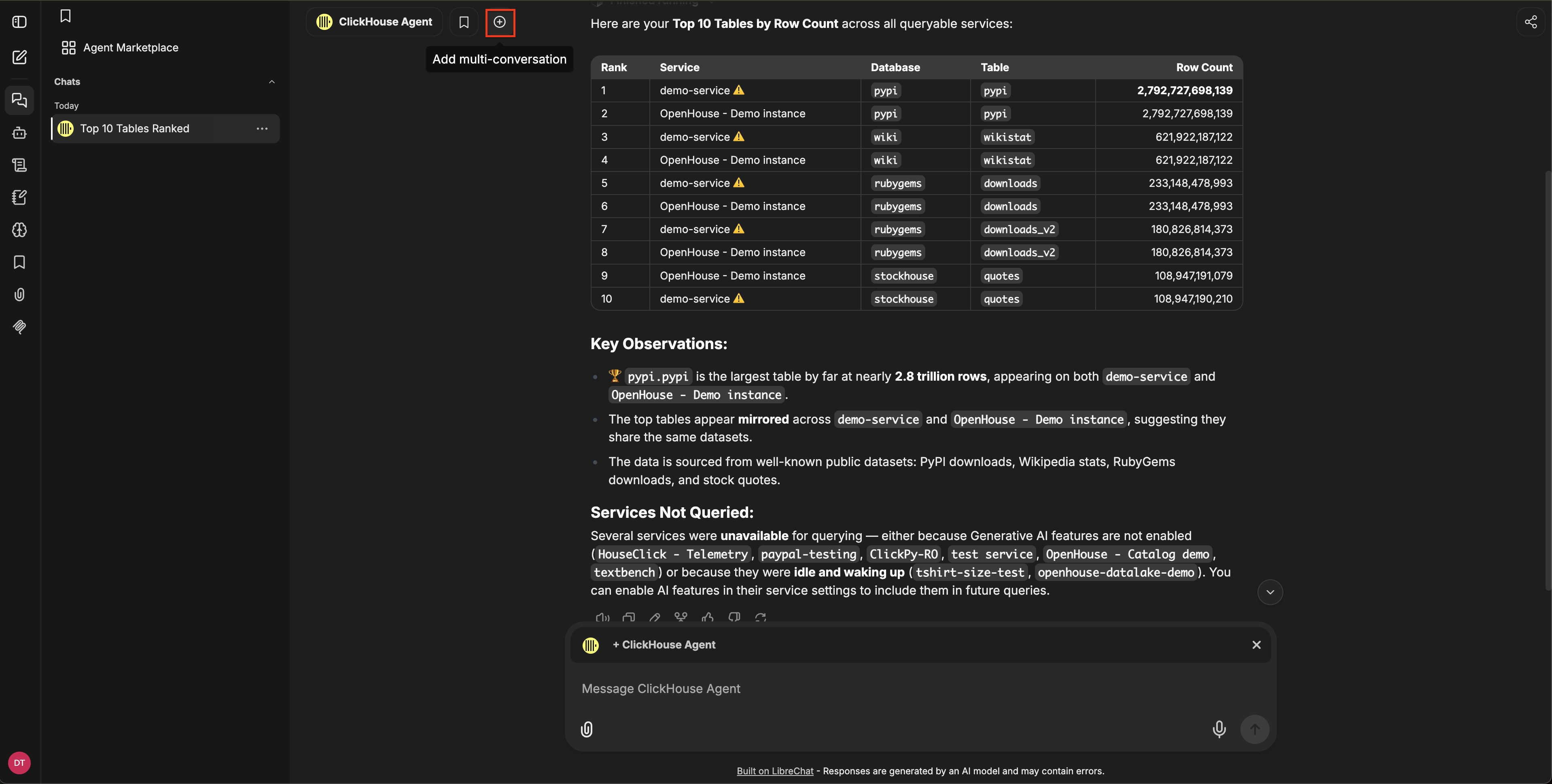
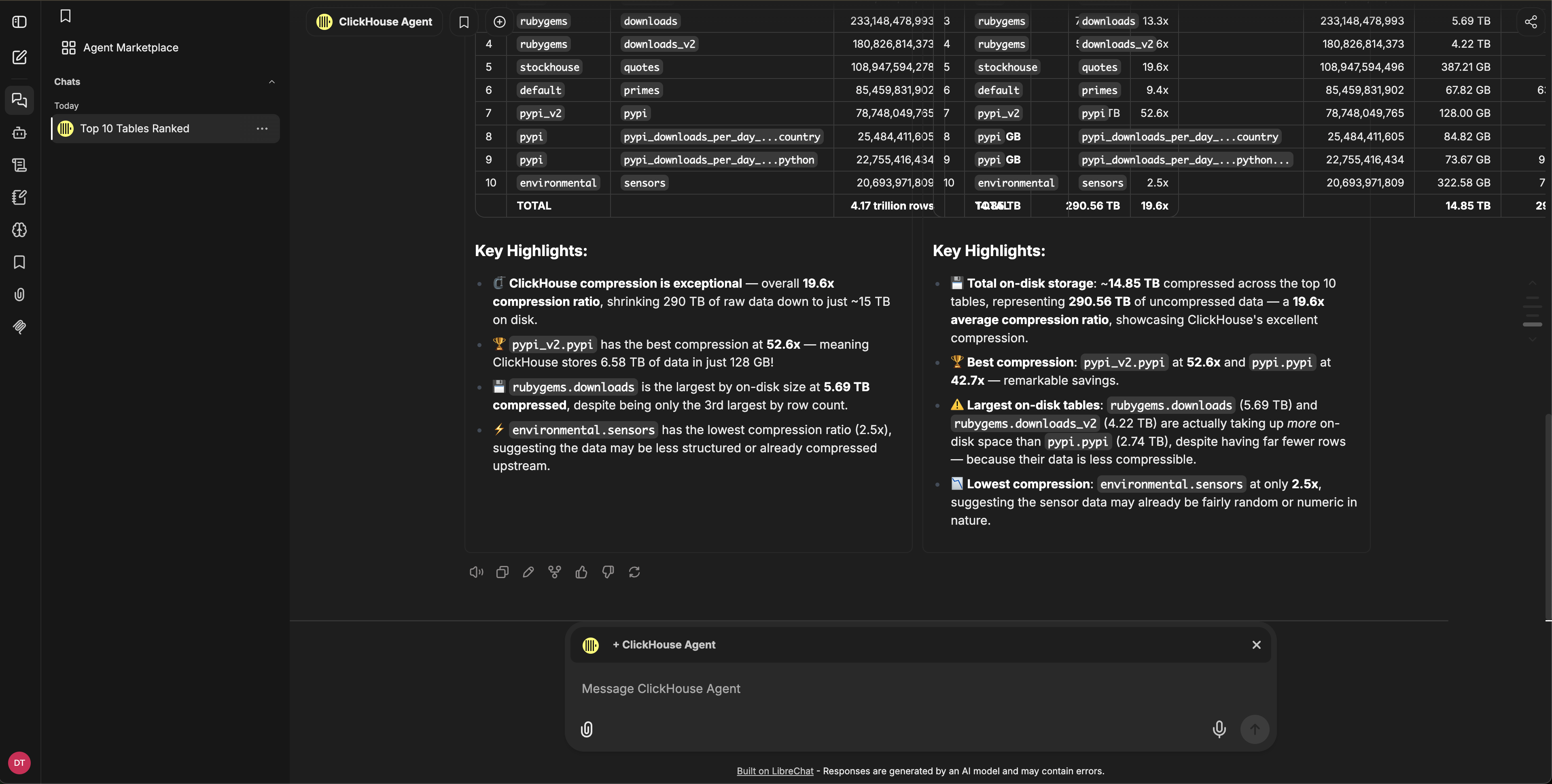
Multi-conversation runs two conversations side-by-side and sends the same prompt to both. Use it to compare responses across models or to A/B test different agent configurations.
Click the + button in the chat header to spawn a parallel conversation alongside the current one.
The two conversations then sit side-by-side and receive the same prompt:
Sharing chats
Generate a shareable link for any conversation to send it to a teammate or save it for reference. Recipients see a read-only view, including artifacts and visible branches. You can revoke a link from the sharing dashboard at any time.
Edits to existing messages appear in the shared view; messages added after the link was generated do not.
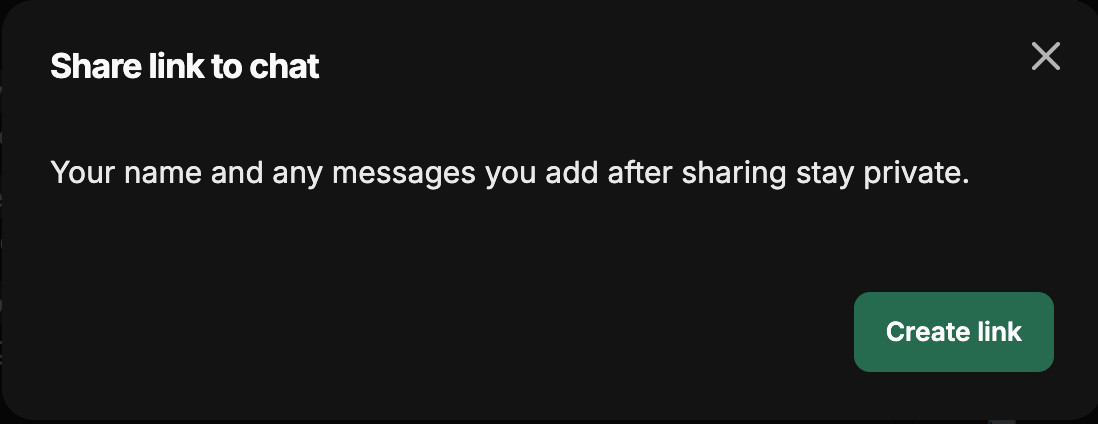
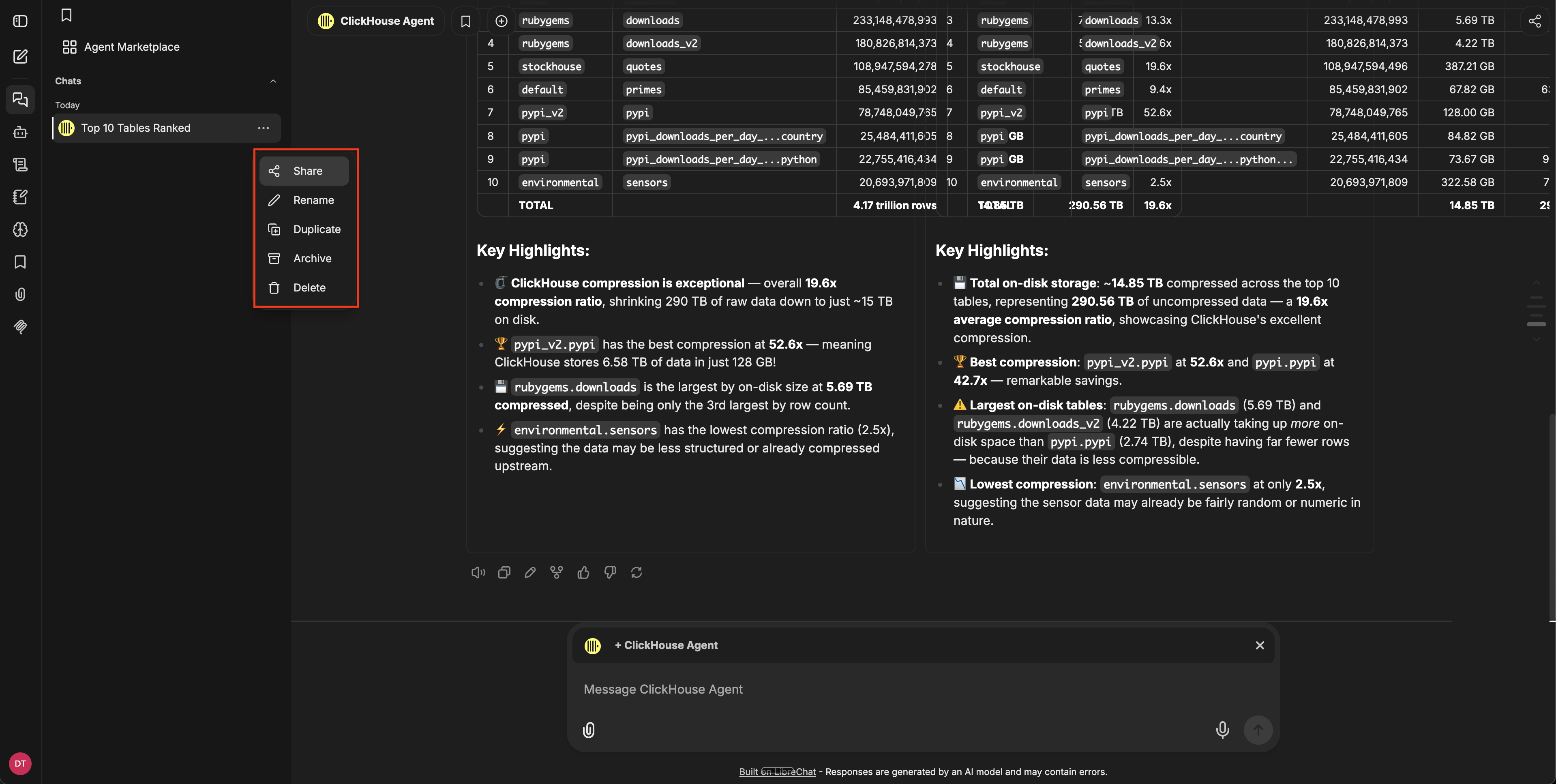
To share a conversation, open its menu in the sidebar and select Share:
Then click Create link in the share dialog: